Get Started
This topic covers what you need before you start and how to add the OpenX MCP Server to Claude or ChatGPT. You connect to one endpoint and get every tool and skill enabled for your account.
The assistant is instructed to create campaigns and deals paused and to ask before activating them.
Prerequisites
To use the OpenX MCP Server, you need:
- An OpenXSelect™ login. You sign in with the same account you use for OpenXSelect.
- Access to the products you want to work with:
- Deals, audiences and deal analytics require OpenXSelect.
- Orders, line items and creatives require OpenXDirect™ to be enabled for your organization, and a user role that can create campaigns.
Connecting to the MCP Server
To connect, you need an MCP client that supports remote servers with OAuth, such as Claude Desktop, Cowork, Claude Code, the ChatGPT desktop app or Codex CLI.
In Claude Desktop, Cowork and Claude Code, you connect through the OpenX connector. It points to a single endpoint, so one connection gives you every OpenX tool and skill enabled for your account.
| Connector | URL |
|---|---|
| OpenX | https://api.openx.com/mcp |
Connecting with Claude
The following steps describe how to connect to the OpenX MCP Server with Claude Desktop, Cowork, and Claude Code.
To connect using Claude Desktop and Cowork:
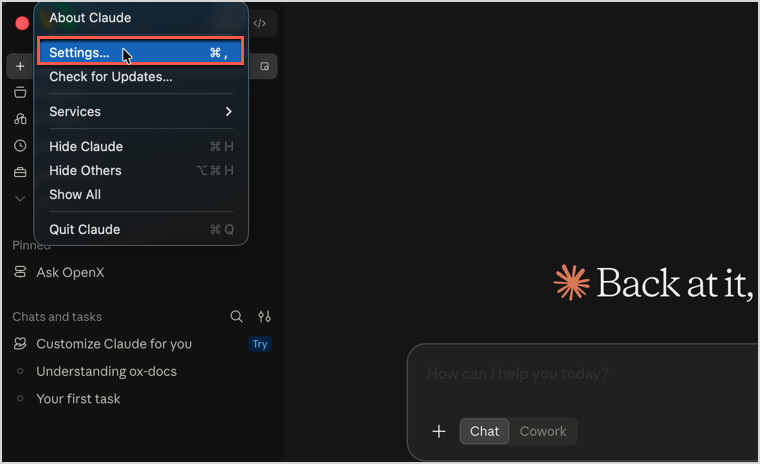
In the Claude menu, click Settings….
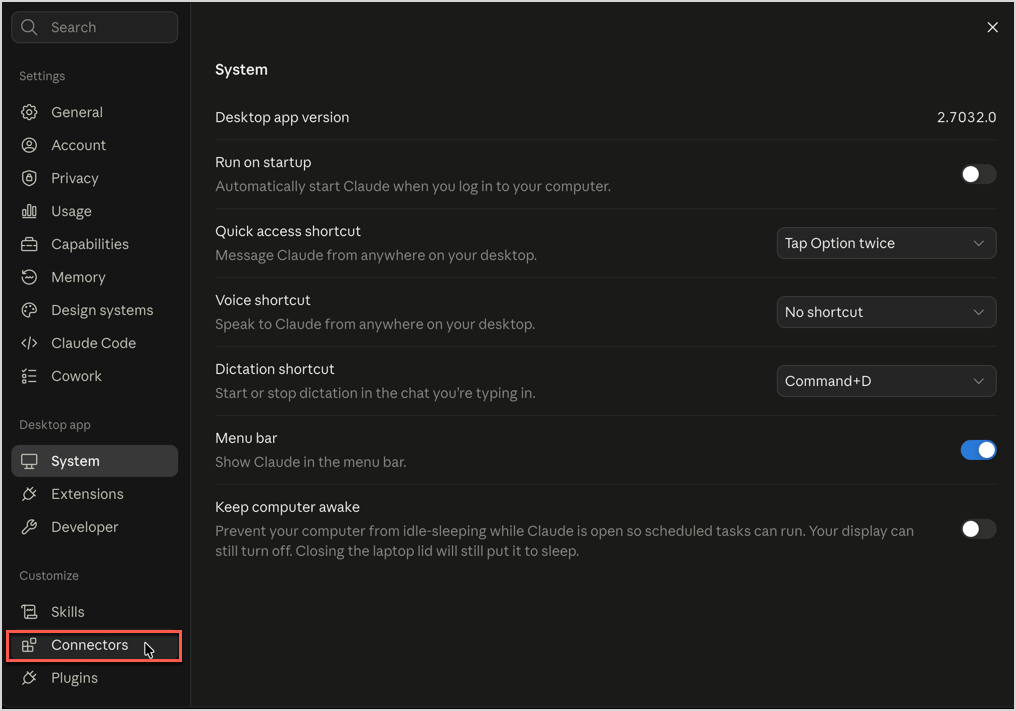
Under the Customize menu, click Connectors.
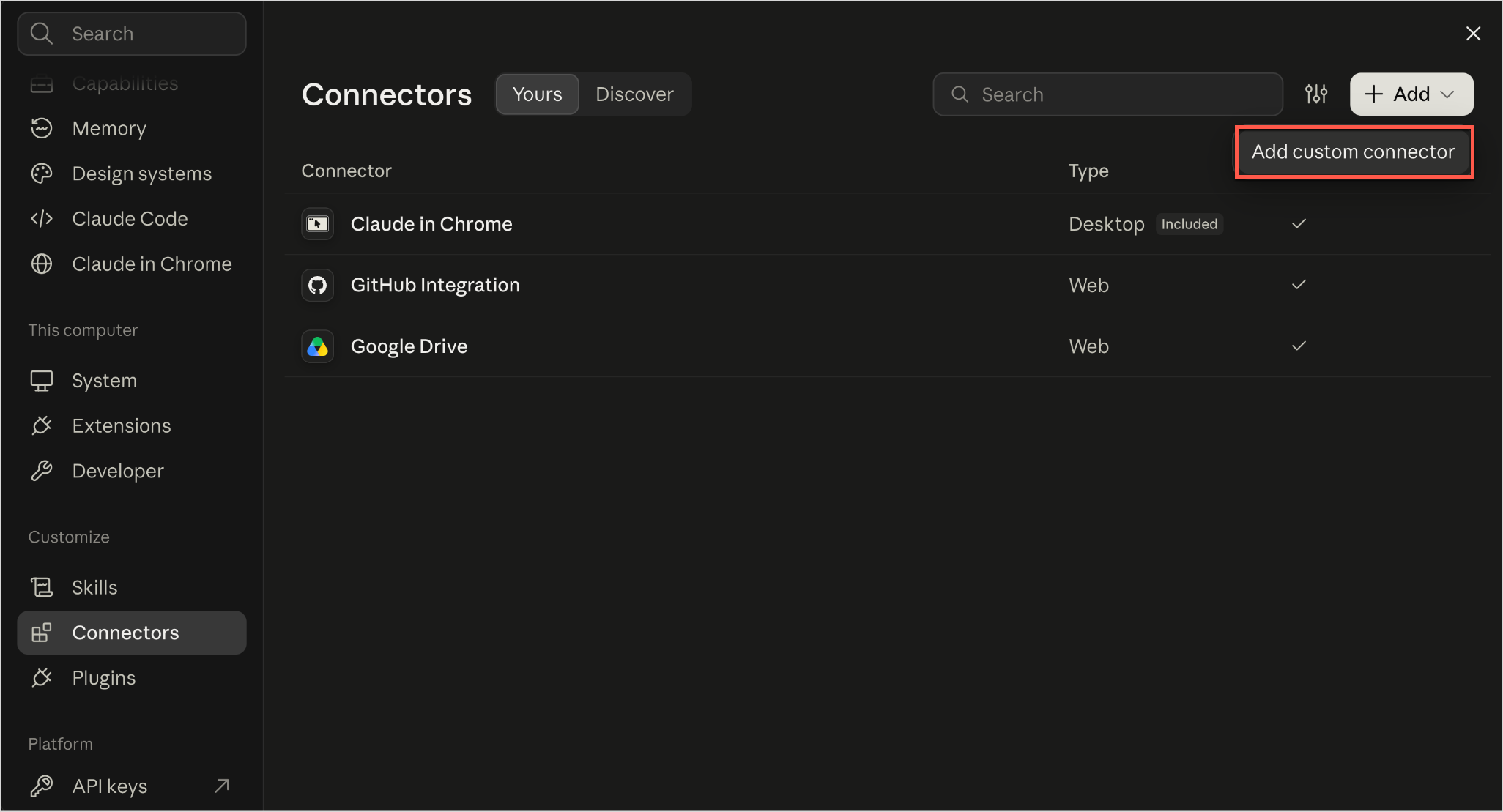
Click + Add, and then click Add custom connector.
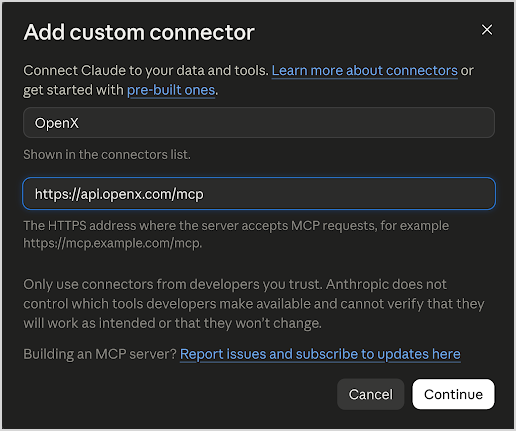
For the name, enter OpenX. For the URL, enter https://api.openx.com/mcp. Click Continue.
Review the authentication settings, and then click Add.
Next to OpenX, click Connect. A browser tab opens. Sign in with your OpenX account.
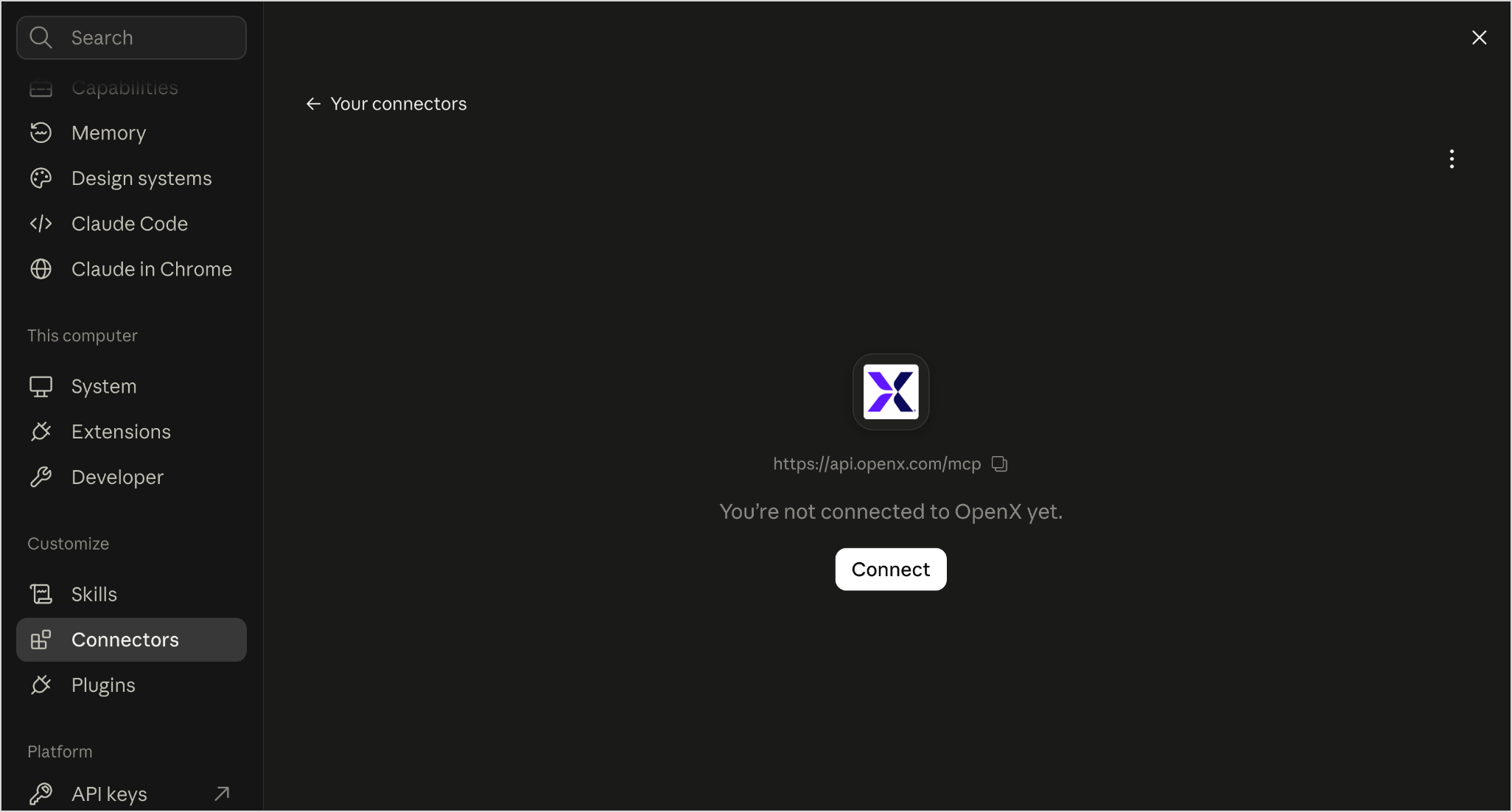
On Claude Team and Enterprise plans, only an owner can add a custom connector. Ask your Claude admin to add it under Organization settings > Connectors. You can then click Connect next to OpenX under Customize > Connectors.
To connect using Claude Code:
- Run
/mcpinside a session. Choose OpenX and then authenticate with your corporate account.
If Claude Code is not signed in with your claude.ai account, add the server directly instead:
 claude mcp add --transport http openx https://api.openx.com/mcp
 claude
The first use of the tool opens the browser login. Tools are then available for following sessions.
Connecting with ChatGPT
The following steps describe how to connect to the OpenX MCP Server with ChatGPT. A workspace-wide ChatGPT connector is planned. Until it is available, add the server manually as described below.
To connect using Codex:
In a terminal, add the server:
codex mcp add --transport http openx https://api.openx.com/mcpStart Codex, run
/mcp, choose OpenX and then authenticate with your OpenX account.
If you have already added the OpenX connector in ChatGPT Desktop with the same ChatGPT account, it is also available in Codex.
To connect using ChatGPT Desktop:
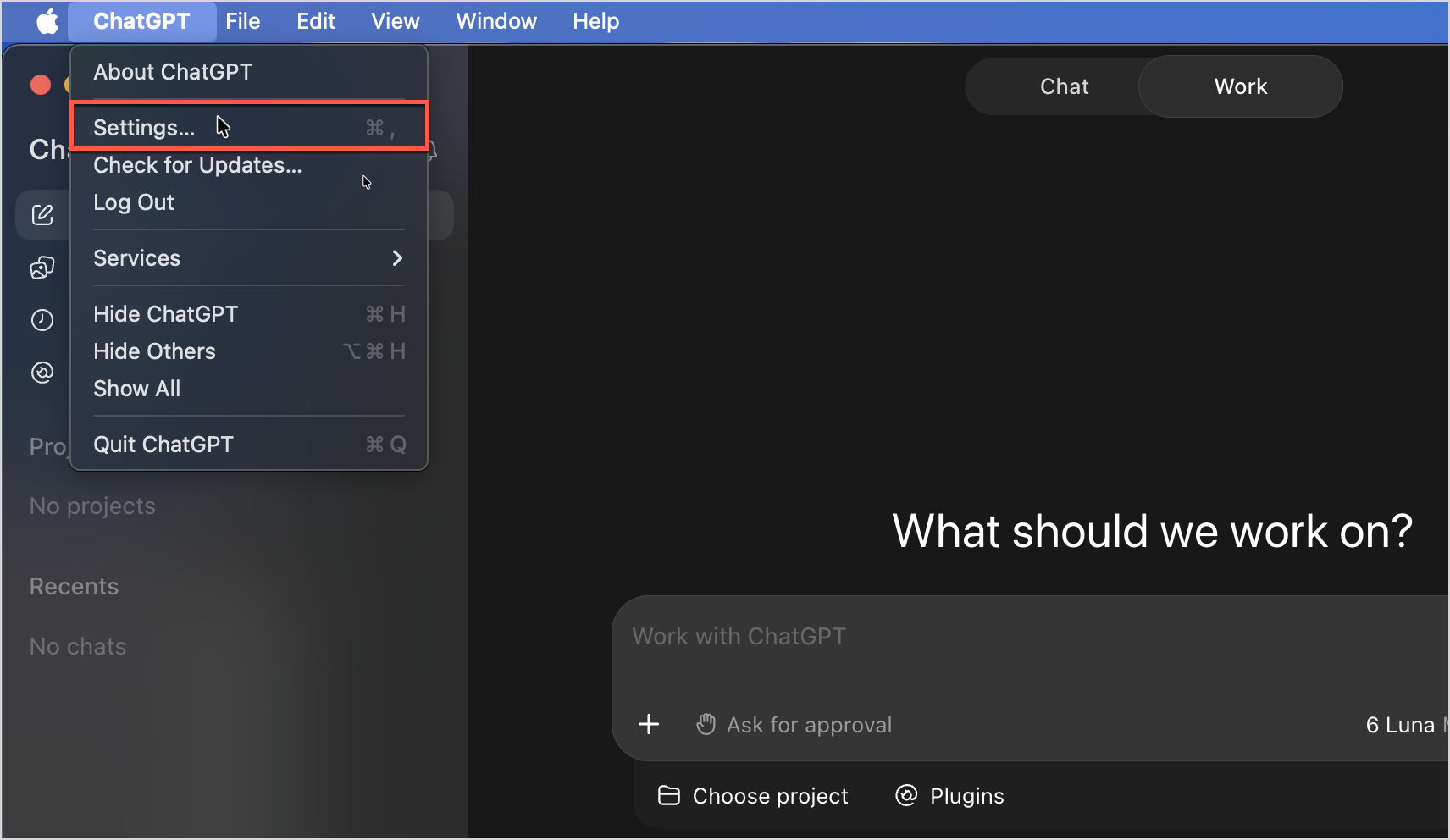
In the ChatGPT Desktop app menu, click Settings….
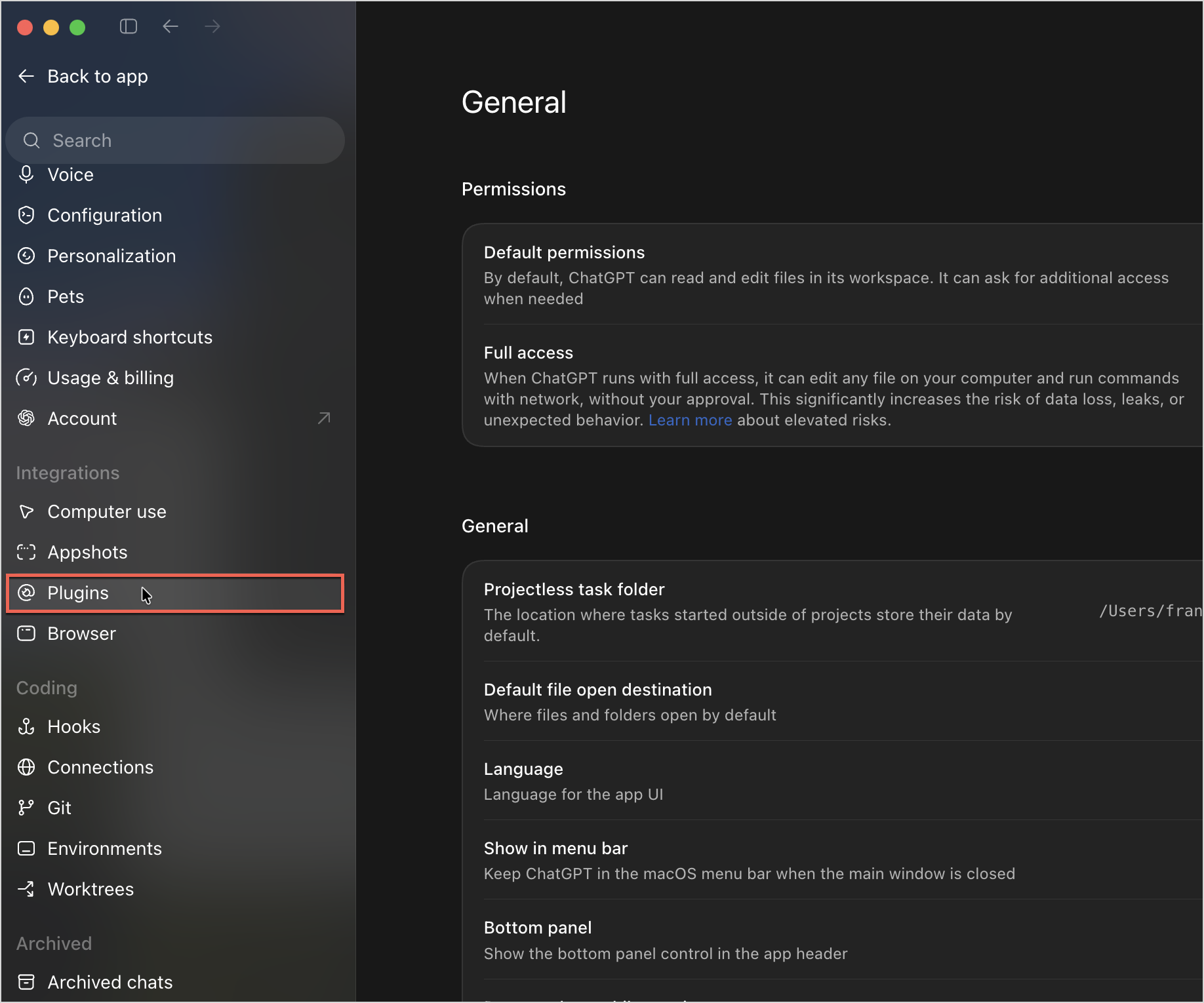
Under the Integrations menu, click Plugins.
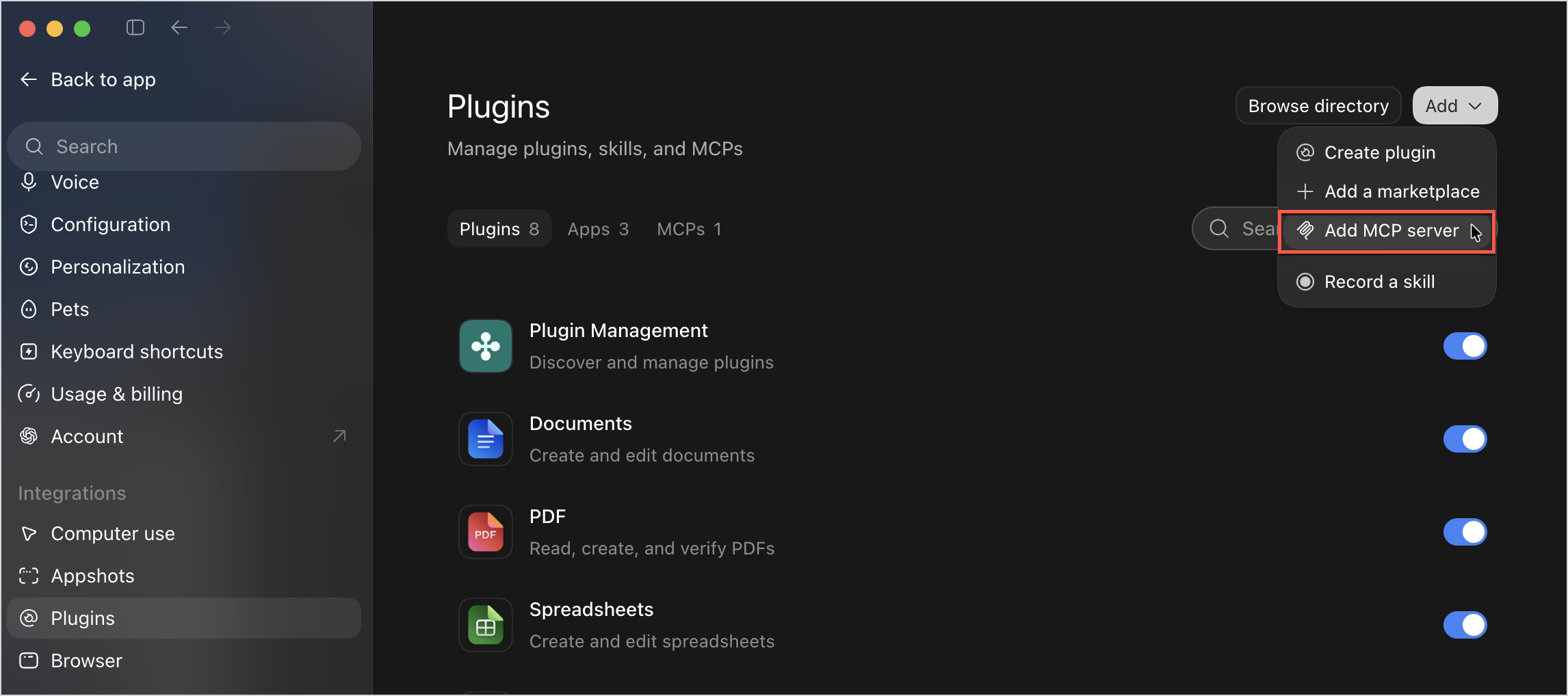
Open the Add list, and then select Add MCP Server.
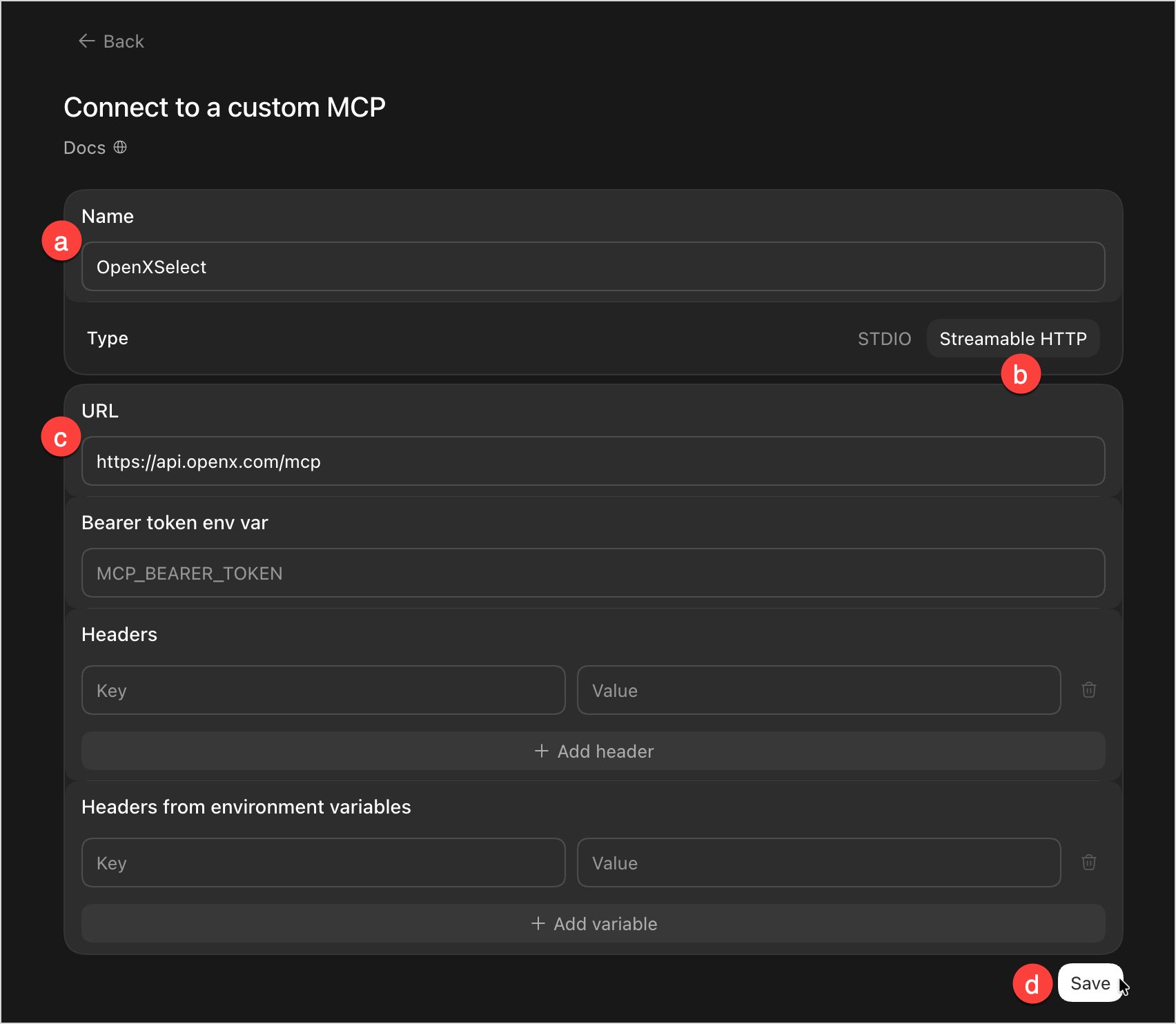
In the Connect to a custom MCP section, do the following:
- Give it a Name. For example, OpenXSelect.
- For type, select Streamable HTTP.
- For URL, enter:
https://api.openx.com/mcp - Click Save.
Back on the Plugins page, click the MCPs tab, and next to the server you just created, click Authenticate.
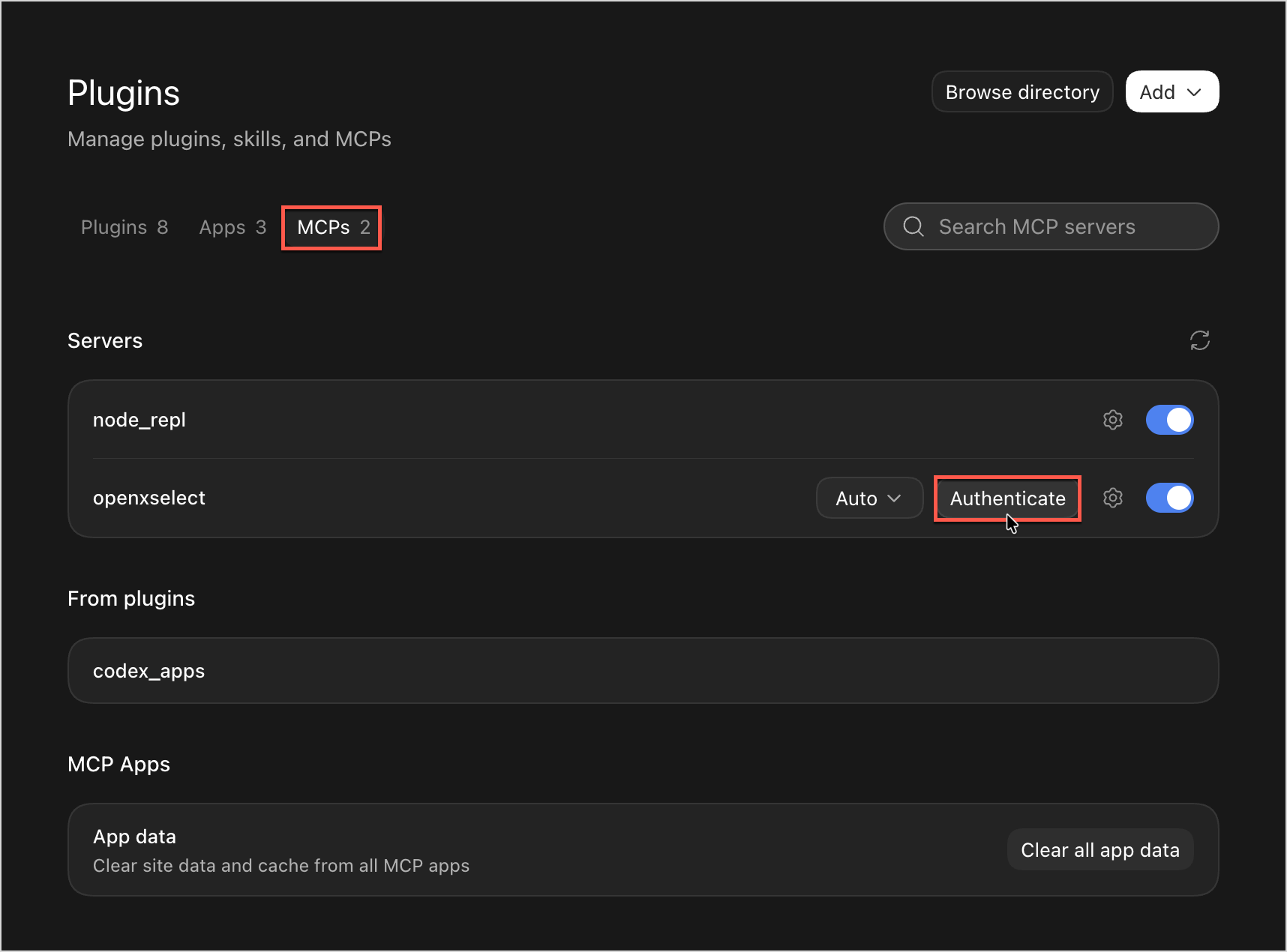
A browser tab opens, sign in with your OpenX account.