Workflow Examples
The OpenX MCP Server lets an AI assistant complete OpenX tasks that normally take several people, several tools and several rounds of review. The examples on this page compare common workflows before and after the OpenX MCP Server, so you can see where it saves time and where you stay in control.
In each example, the AI assistant follows an agent skill. A skill tells the assistant which tools to call, in which order, and which rules to check along the way. For details, see MCP Skills.
| Workflow | Without MCP | With the OpenX MCP Server |
|---|---|---|
| Deal creation | Hours to days | Minutes |
| Deal troubleshooting | Days | Minutes |
| Campaign launch | Hours, often with rework | Minutes |
Times are typical estimates and depend on the request.
Example 1: Create a Deal
Skill: Create a Deal (openx-deal-creation)
Without MCP
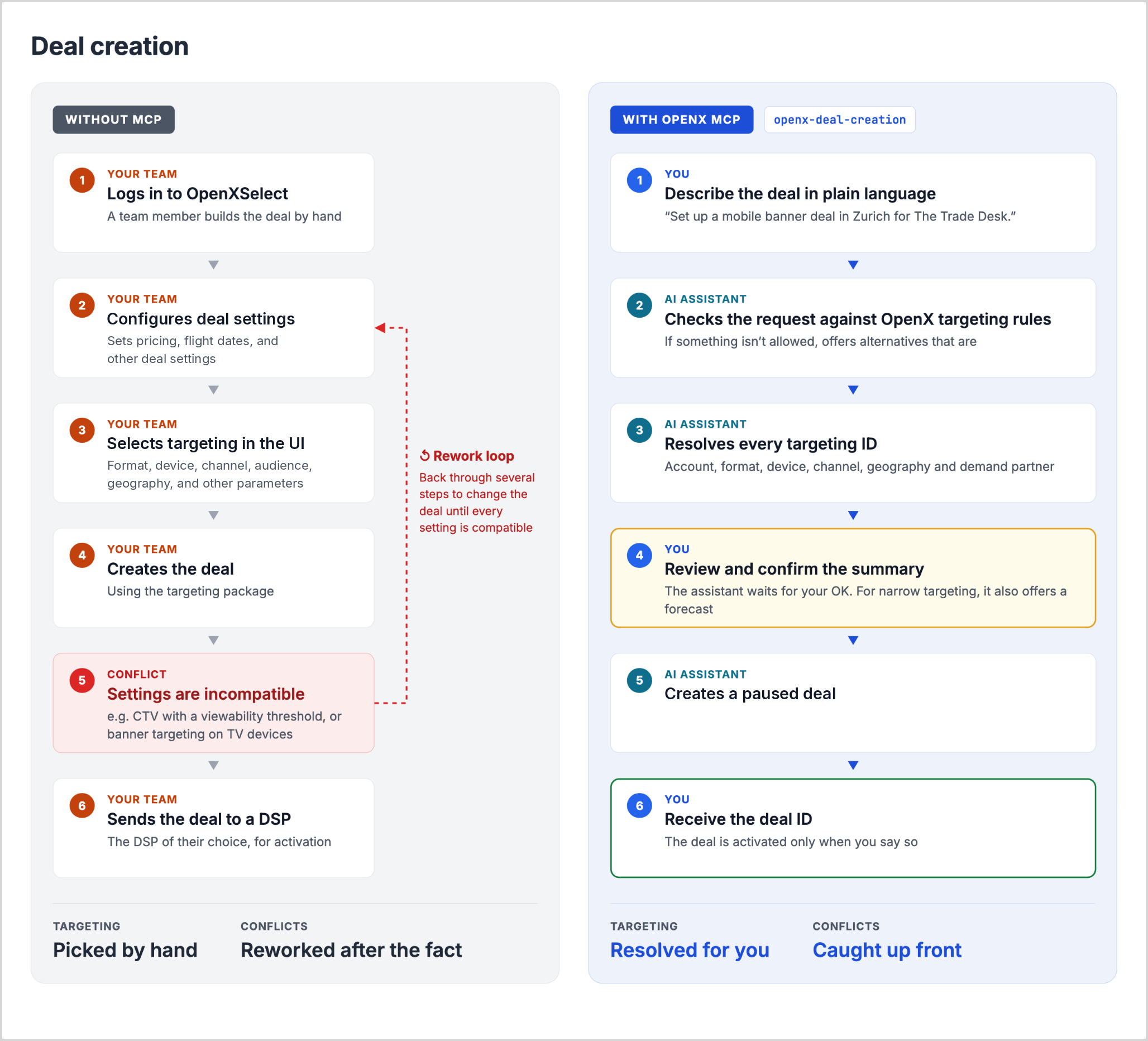
A member of your team logs into OpenXSelect™, configures pricing, flight dates and other deal settings, builds a targeting by selecting a format, device, channel, geography and any additional targeting options, and then sends it to their chosen DSP for activation.
If they select incompatible settings, such as CTV combined with a viewability threshold or banner targeting on TV devices, they have to go back through several steps to change the deal until all its settings are compatible.
With the OpenX MCP Server
- You describe the deal in plain language.
- The AI assistant then checks the request against OpenX targeting rules and, if something is not allowed, offers alternatives that are.
- Resolves every targeting ID, including the account, format, device, channel, geography and demand partner.
- Shows you a summary of the deal and waits for your confirmation. For narrow targeting, it also offers a forecast.
- Creates the targeting package and the deal, paused.
- Returns the deal ID and activates the deal only when you say so.
Example prompt:
“Set up a mobile banner deal targeting Zurich for The Trade Desk Seat ID: ABC 123”
Safeguards
- Invalid targeting combinations are caught before the deal is created, not after.
- Nothing is created until you confirm the summary, and the deal is created paused.
Example 2: Troubleshoot an Underdelivering Deal
Skill: Troubleshoot a Deal (openx-deal-troubleshooter)
Without MCP
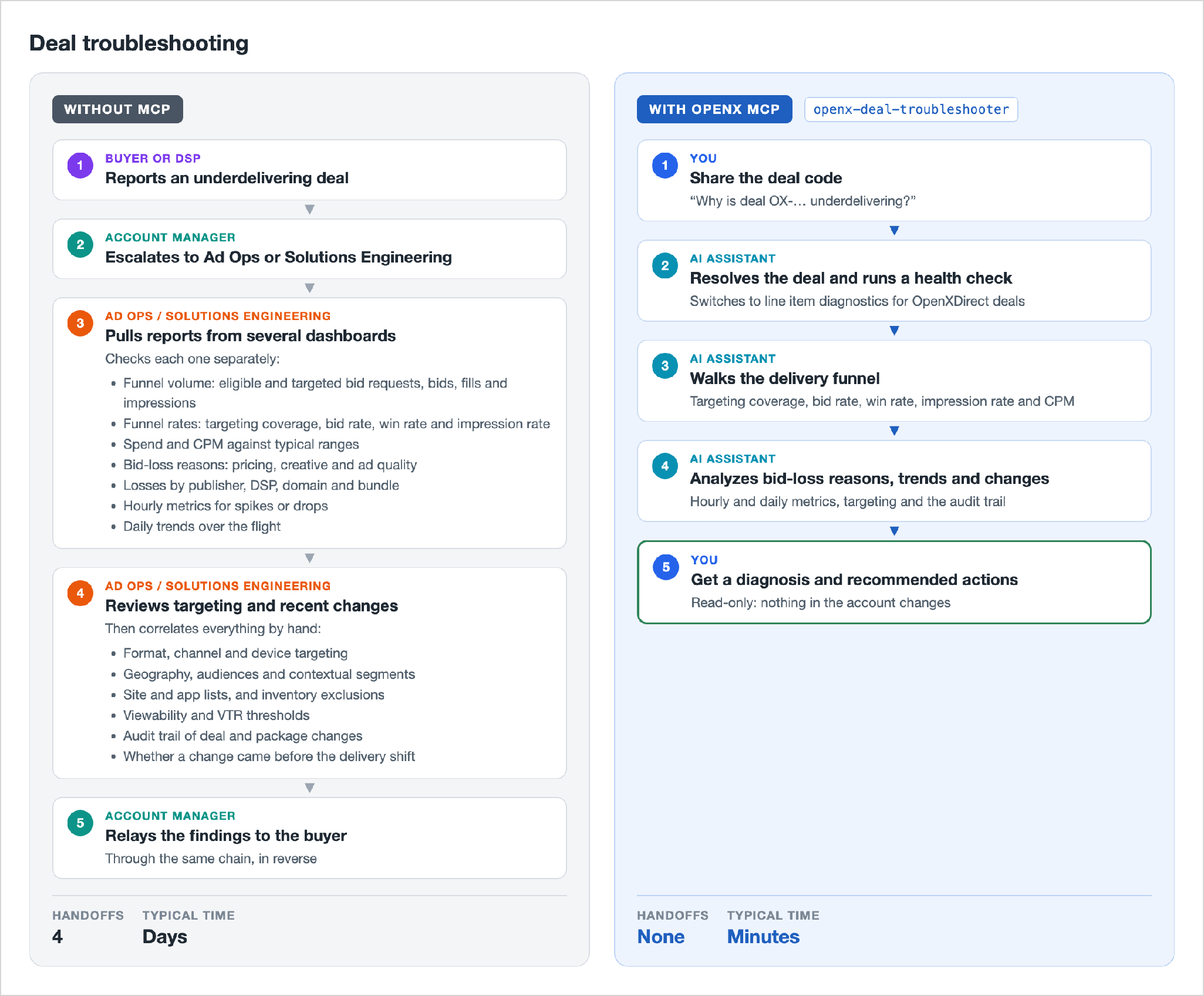
When a deal is not delivering as expected, getting to the root cause can take time. If you raise an issue today with your OpenX account manager, they will work with our internal teams to investigate. This covers reviewing the delivery funnel, bid-loss reasons, targeting setup, and any recent configuration changes. The findings are then shared back with you.
With the OpenX MCP Server
Anyone with access gives the AI assistant a deal ID. The AI assistant then:
- Resolves the deal ID to the deal and runs a health check on the last seven days.
- Walks the delivery funnel: targeting coverage, bid rate, win rate, impression rate and CPM.
- Breaks down the bid-loss reasons and checks hourly and daily trends.
- Reviews the deal’s targeting and its audit trail of recent changes.
- Returns a plain-language diagnosis with recommended actions, ordered by expected impact.
If a line item buys on the deal, the deal is an OpenXDirect™ deal, and the assistant switches to the Diagnose a Line Item skill instead.
Example prompt:
“Deal OX-XXXX-XXXX is underdelivering. Find out why and tell me what to change.”
Safeguards
- The skill uses read-only tools, so nothing in the account changes.
- Every number in the diagnosis comes from the OpenX tools; the assistant does not estimate or invent metrics.
- You decide which recommended actions to take.
Example 3: Launch a Campaign
Skill: Launch a Campaign (oxs-campaign-launch)
Without MCP
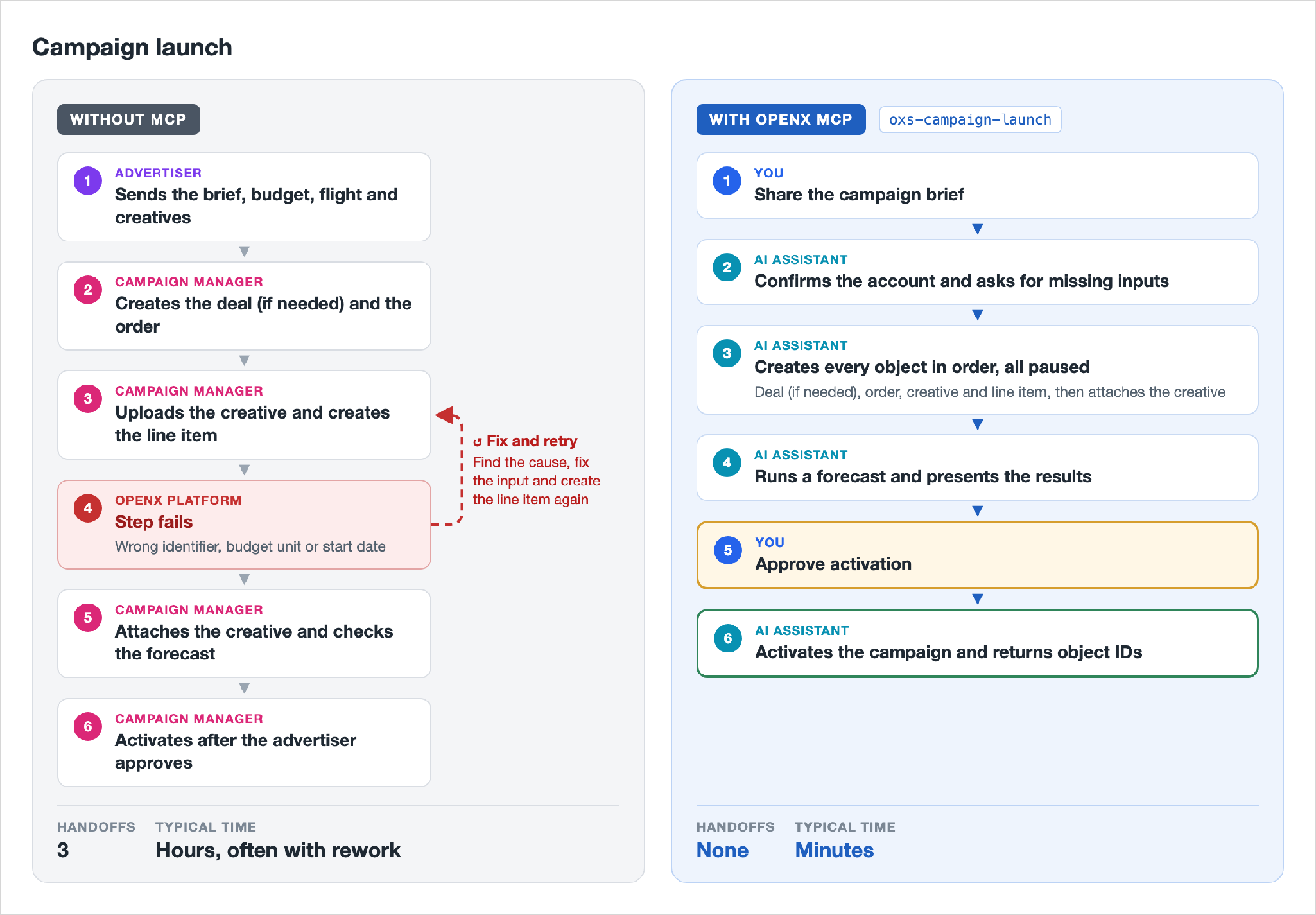
Launching a campaign means creating several linked objects in the right order: the deal (if needed), the order, the creative and the line item. You then attach the creative, check the forecast and activate each object. Each step has its own rules. For example, a line item’s format must match its deal’s format, and a start date that has already passed in UTC is rejected. A mistake in one step usually surfaces only at the next one, so you have to find the cause, fix it and retry before moving on.
With the OpenX MCP Server
The user can give the AI assistant the campaign brief. The AI assistant then:
- Confirms the account and asks for any missing inputs before it creates anything.
- Creates every object in the correct order, all paused, with the right identifiers and units at each step.
- Attaches the creative to the line item.
- Runs a forecast and presents the results.
- Activates the campaign only after you explicitly approve, then returns the ID of every object.
Example prompt:
“Create an order called “Fall CTV test” with a $10,000 total budget. Add a CTV line item on the “Premium CTV” deal that runs through the end of next month with a $2,000 budget, and attach my “Fall 30s” creative. Run a forecast, and if it looks healthy, prompt me to activate the campaign.”
Safeguards
- Every object is created paused, so nothing goes live by accident.
- If the forecast is red, the assistant stops and shows the warnings. If it is yellow, the assistant asks you before continuing.
- Nothing is activated without your explicit approval.
These workflows create and change real objects in the account you are signed in to. Review the summary the assistant shows you before you confirm.